
Custom AI Block
The Custom AI block generates text using any AI provider of your choice. Simply provide an API key, model name, and endpoint URL. If the selected model is unavailable, it automatically falls back to the next model in the list.
Model Name
The name of the model to use. Users can find the AI model by accessing this Model page to search for the desired model IDs.
URL
This is the URL of the AI you want to use. To find out the correct value of an AI, users should search using the keywords AI Name + API documentation to display the official documentation page of the AI and then search within that page to find the URL.
Some URLs of popular AIs:
- ChatGPT:
https://api.openai.com/v1 - Claude:
https://api.anthropic.com/v1 - Grok:
https://api.x.ai/v1 - DeepSeek:
https://api.deepseek.com
API Key
The API key is used for the AI the user wants to use. To find the API creation page, users can search using the following keywords: AI Name + Developer Dashboard
Prompt
Present the request when creating a text snippet or an image
Assign to a variable
You can assign a value to a variable.
- Variable Name: The name of the variable to which to assign the value. This field appears when the user selects to assign to the variable.
Insert into a table
You can insert a value into a column in table
- Select column: The column where the value is inserted. This field appears when the user selects to insert into a table.
Add additional rows
Insert an additional row into a column in table.
Practical Example
For example, to request the ChatGPT AI to write questions for the Professor in the Kite AI testnet project, use the following:
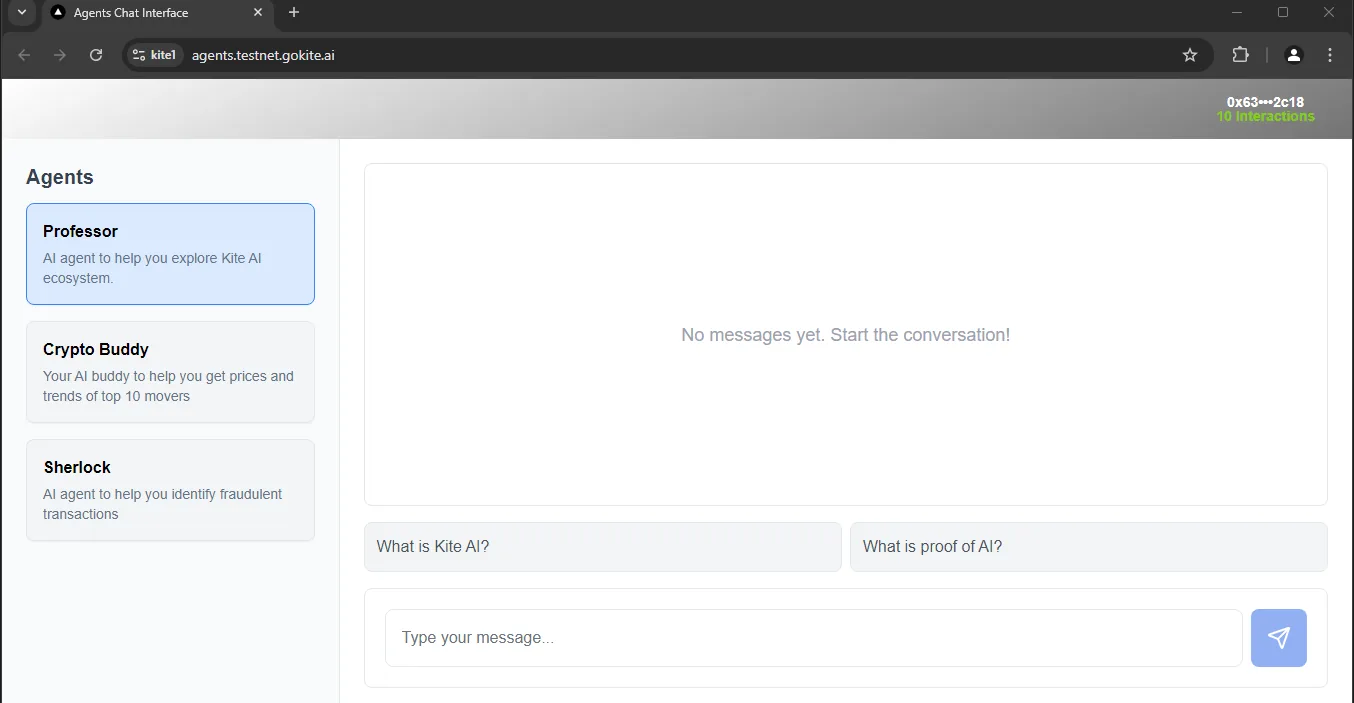
To do this, the user will need to configure the ChatGPT AI node as follows:
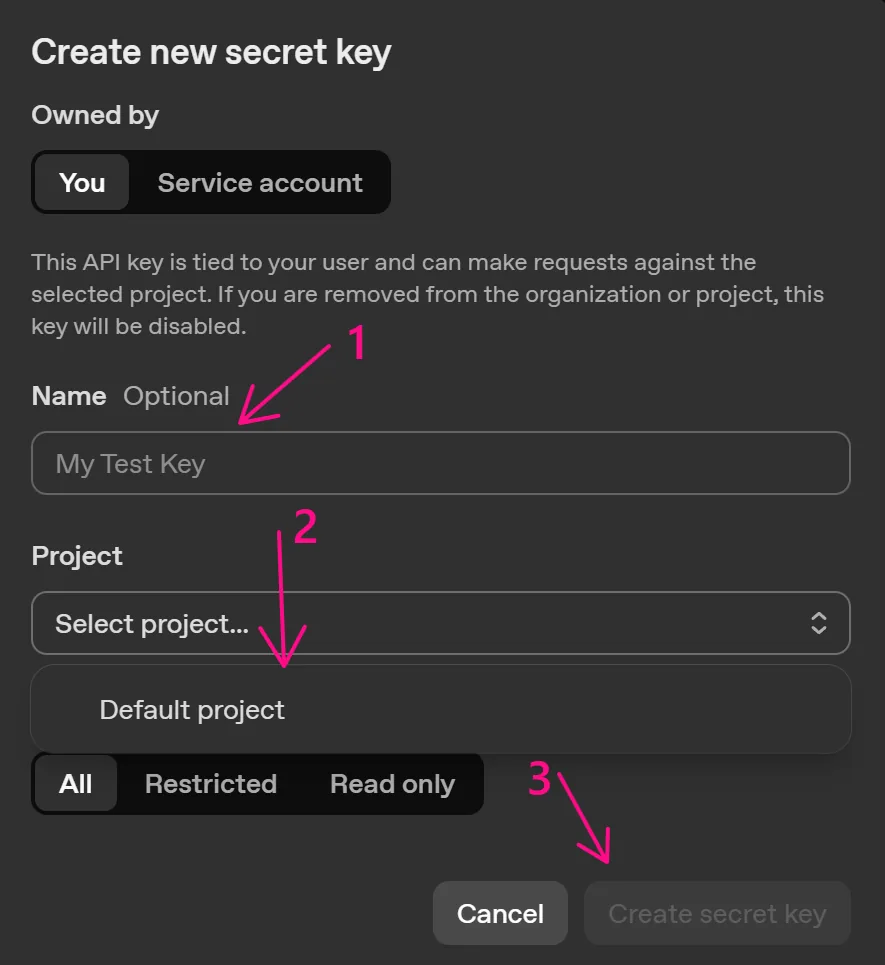
To create this API, the user accesses the API Key page.
Create a new API key:

Enter a name and click create.
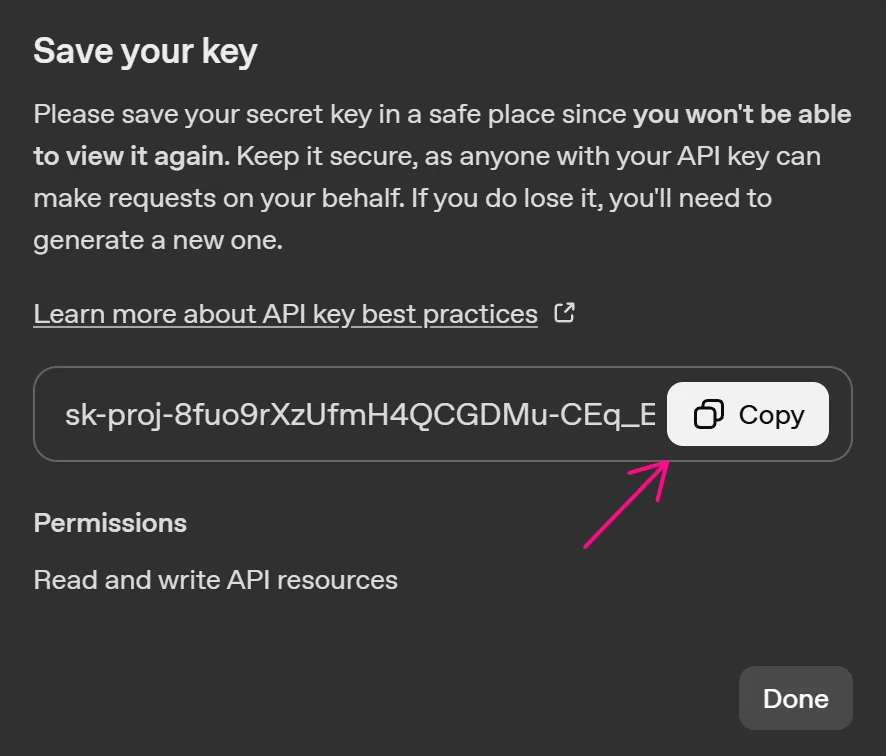
Save that API address for later use.
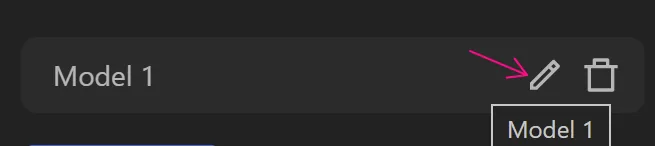
Then create the Custom AI node, and then select... Pen icon in the model for editing
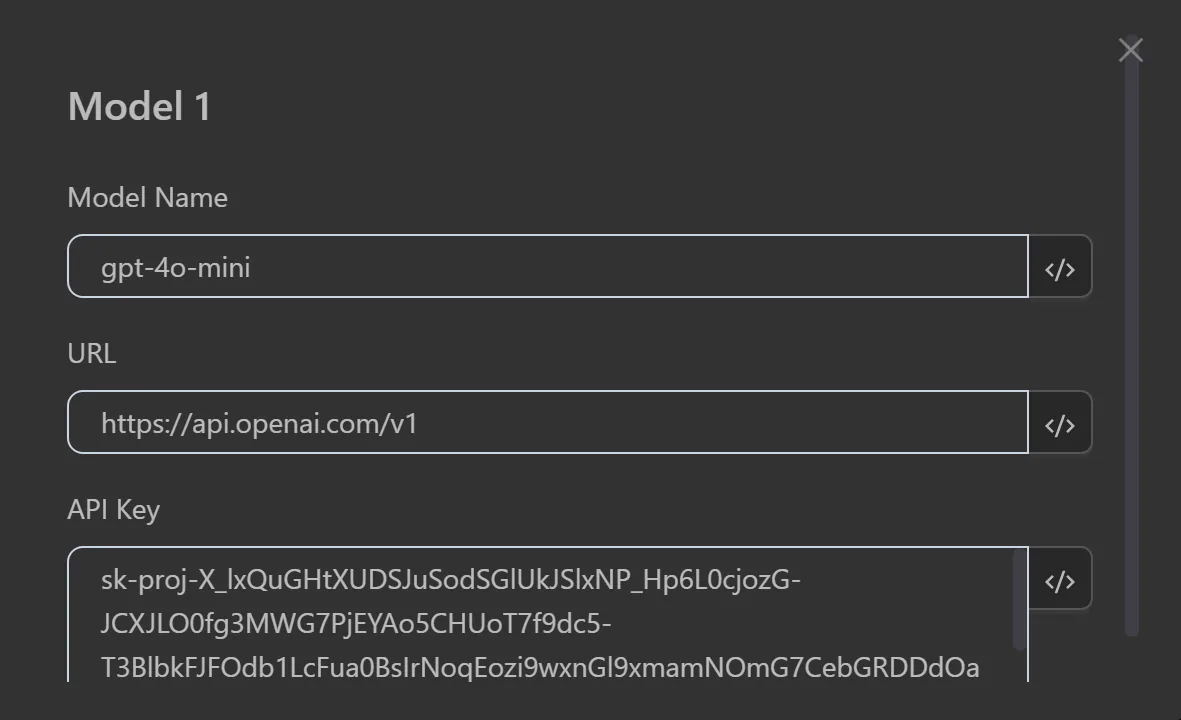
In the Model Name section, since the user wants to create a question, they will use the gpt-4o-mini model, which is suitable for creating questions. Next, fill in the URL corresponding to the ChatGPT AI. Finally, fill in the API to use that model.
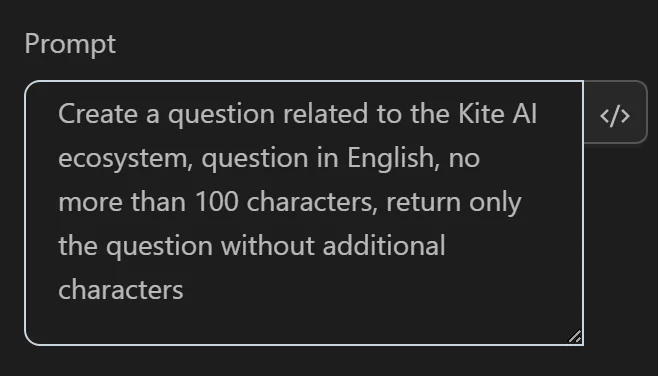
Next, in the Prompt section, since the user wants to create a question to ask the Professor AI, which helps the user explore the Kite AI ecosystem, the user will describe the prompt as follows: Create a question related to the Kite AI testnet ecosystem. Additionally, the user can add requirements such as question in English, not exceeding 100 characters. Return only the question without adding any characters, then the user will fill in as follows:
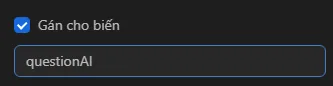
Finally, after this node runs, it will return a question. To receive that question, we need to use a variable/table. For ease of use in the process, the user will assign the question to a variable and name that variable questionAI.
After configuration, the user will run the node, and the AI will return the result in the questionAI variable as follows:

After obtaining the question, the user will write the question to the send field using the node's Press Key function, using the expression to retrieve the variable value {{variables.questionAI}} and send it to the AI. AI
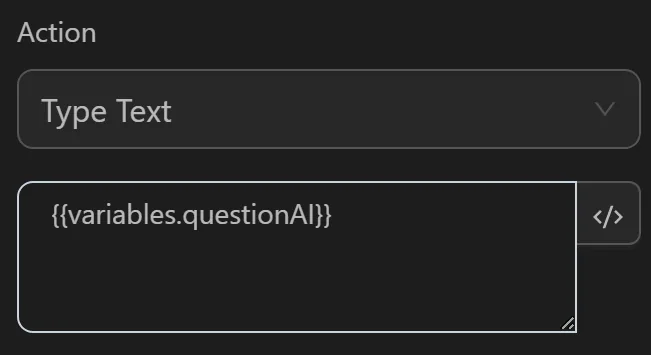
Then the paragraph will be displayed as follows:
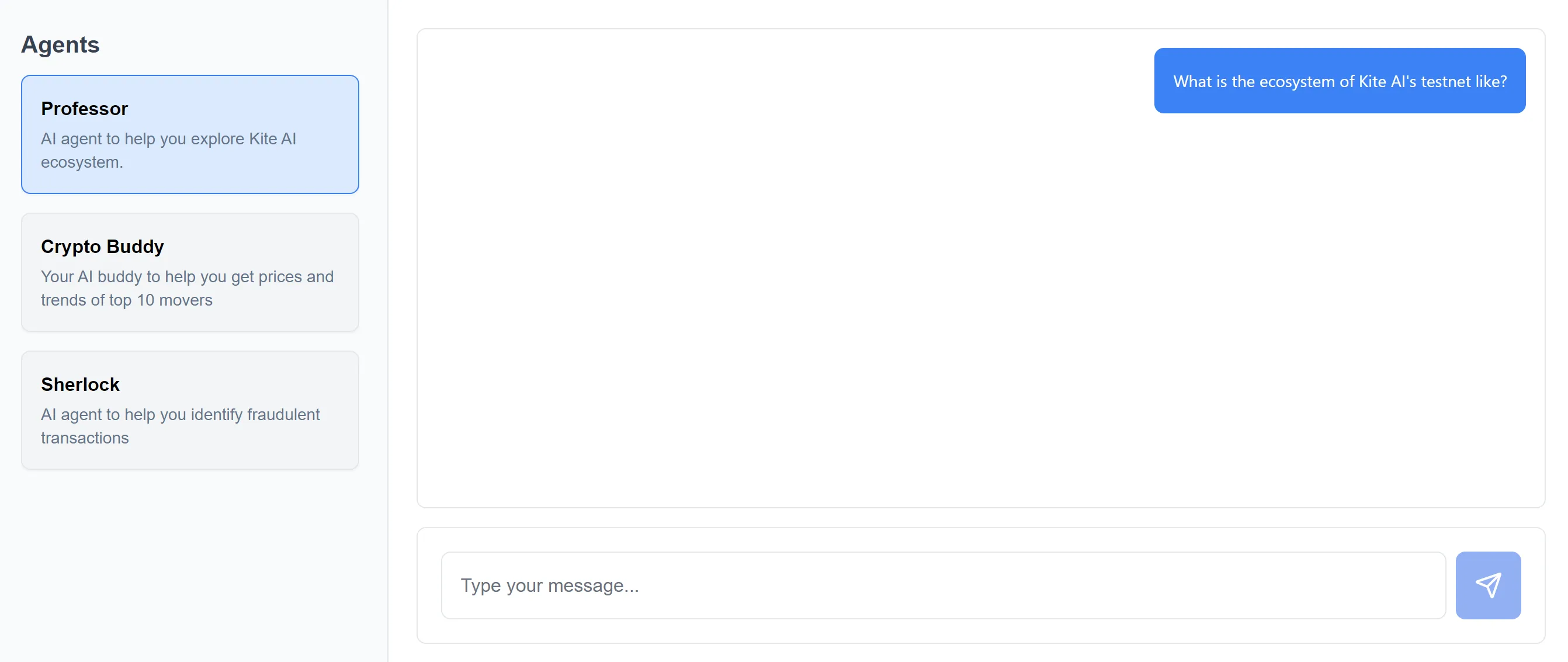
Thus, the ChatGPT node was used to create the question in the Kite AI testnet.