
Workflow Overview
A workflow is a collection of connected blocks (nodes) that automate a specific process. When you run a workflow, execution starts from the Starter block and flows through each connected block in sequence. The workflow ends when all blocks have executed. You can review past executions in the workflow logs.
Additionally, you can perform some actions on a created workflow by clicking the three-dot icon ()
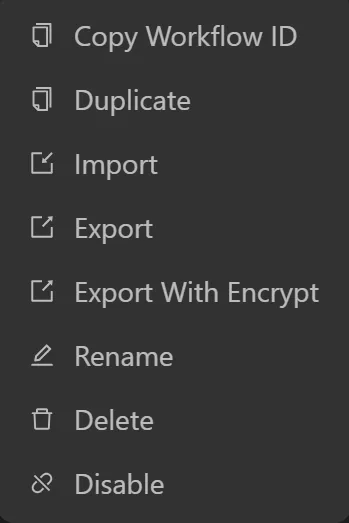
Copy Workflow ID
You can use this function to retrieve the workflow ID when using the API to run a script based on a workflow ID.
Duplicate
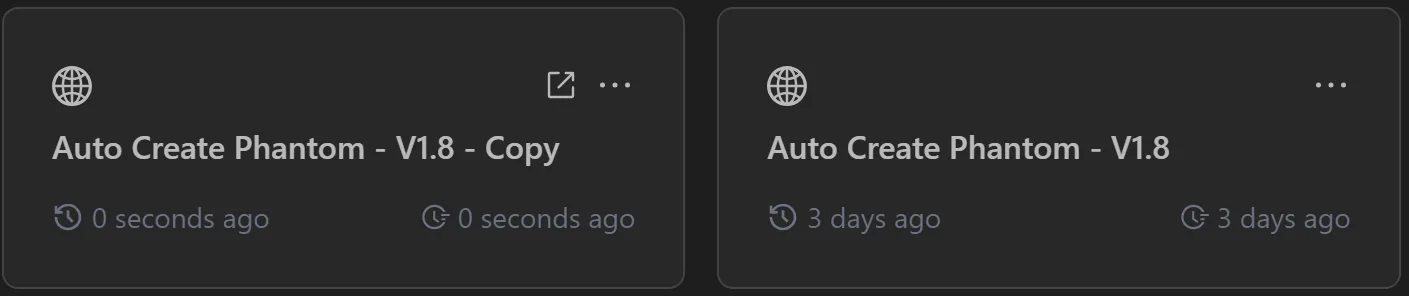
Duplicate the desired workflow. The duplicated workflow will have the word copy appended to its name.
Import
Import
To import an exported workflow, open the Workflow panel, click the three-dot icon (), click the Import menu and select a JSON file exported from Omnilogin's Export feature. You can choose Import from within the workflow creation area, in the workflow settings, or from the workflow list.
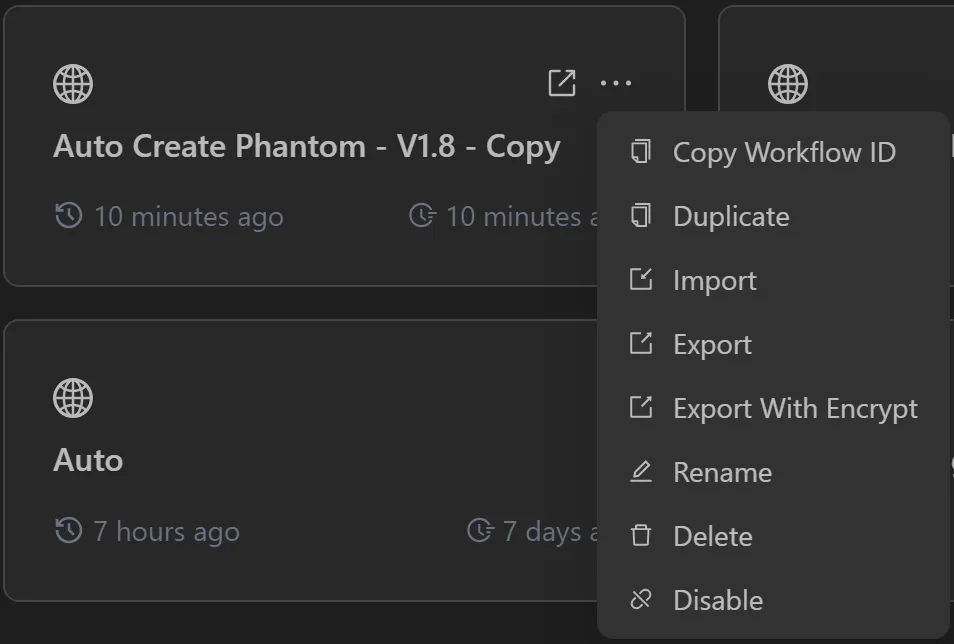
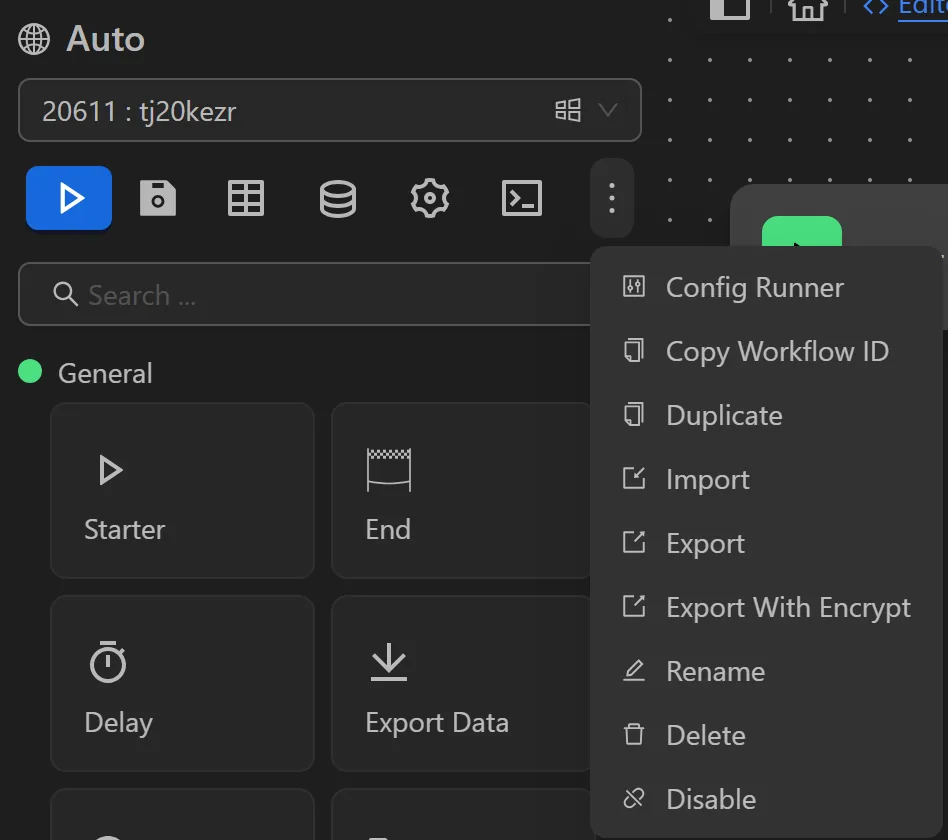
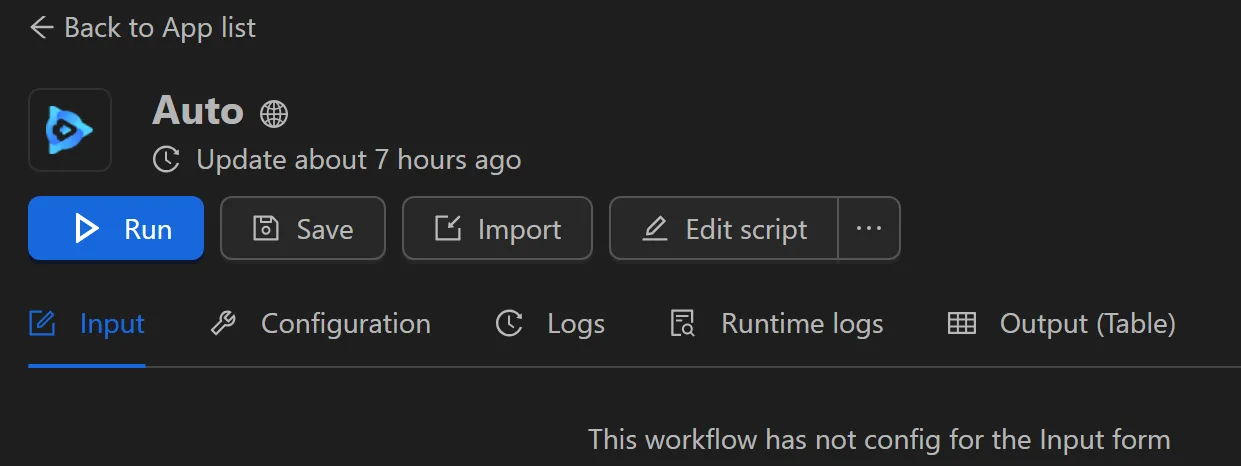
After selecting Import , a popup will appear as shown.
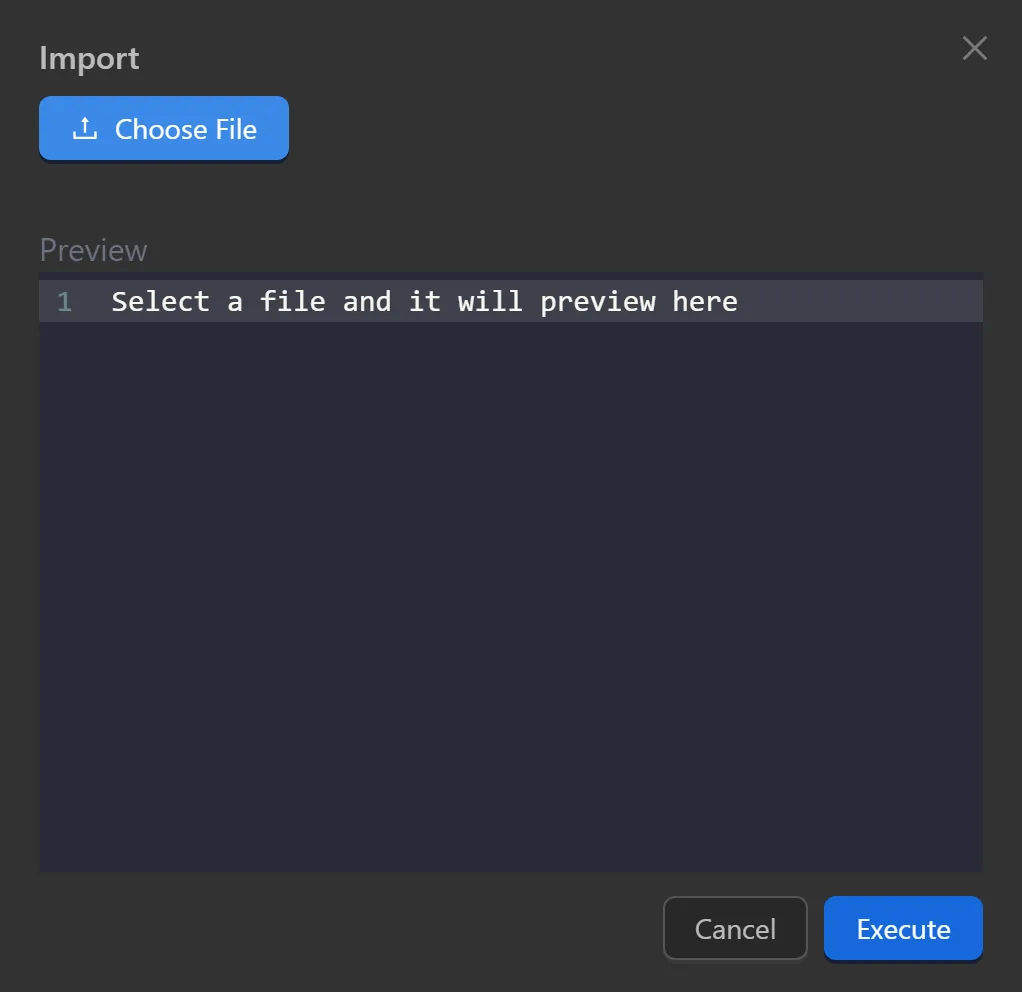
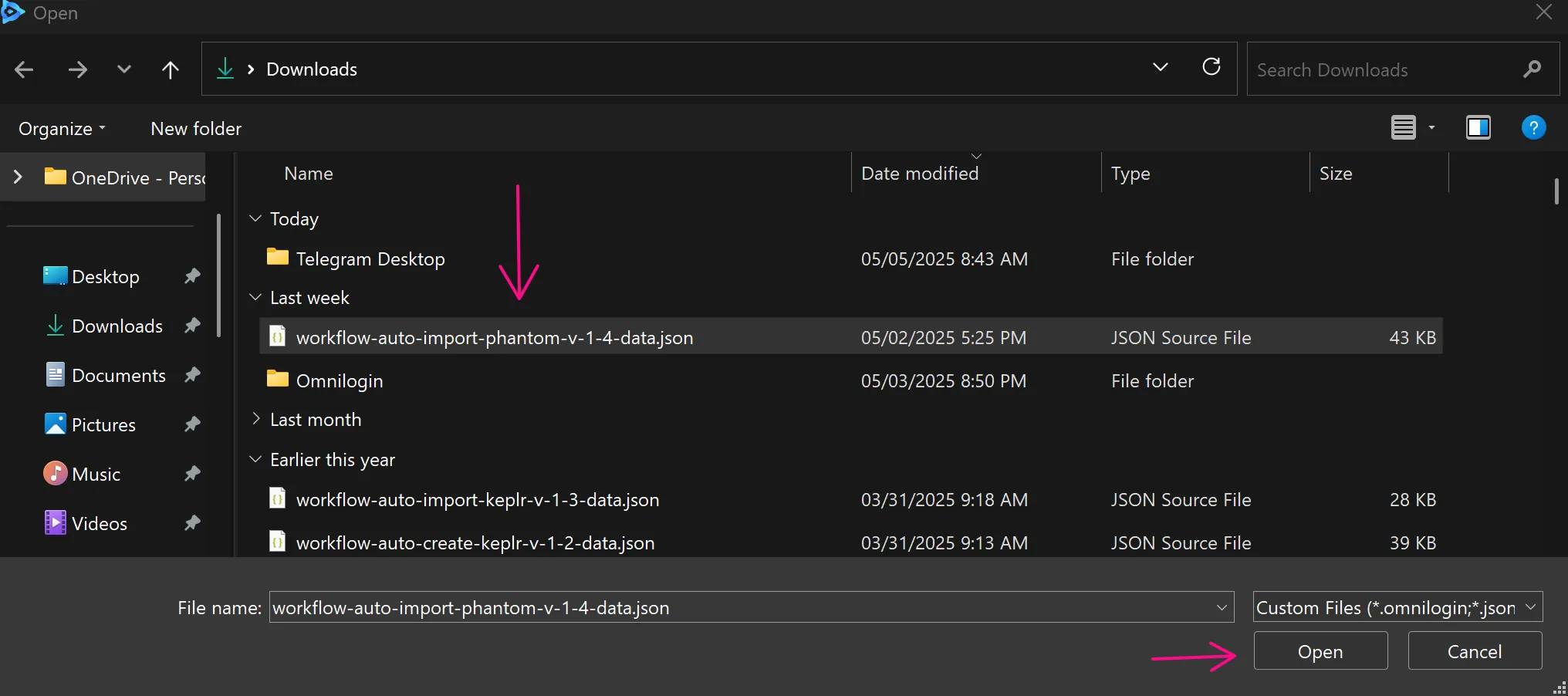
Next, click the Choose File button. A window will open showing folders and files to select for import.
After selecting a file, its JSON content will be displayed in the popup.
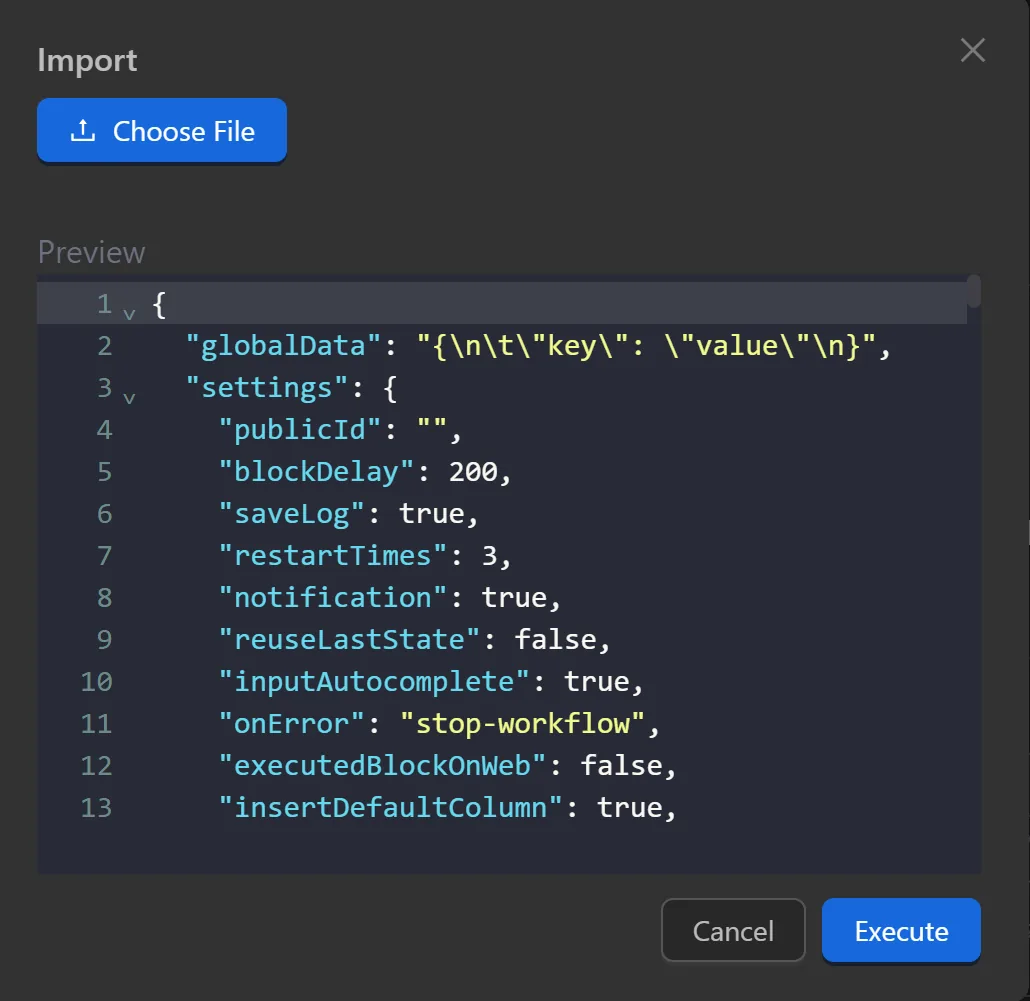
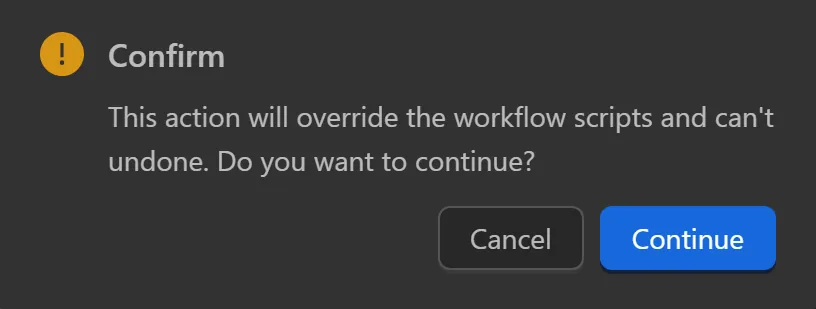
Next, click the Execute button. Finally, another popup will appear - click Continue to complete the import.
Import encrypted file
To import an exported workflow, open the Workflow panel, click the three-dot icon (), click the Import menu, and select a JSON file. When importing encrypted files, files encrypted with username or key will trigger different popup types
- File encrypted by username: if the Omni account username matches the one allowed to use this workflow, the import will succeed.
- File encrypted by key: enter the correct key for the workflow to successfully import it.
Export
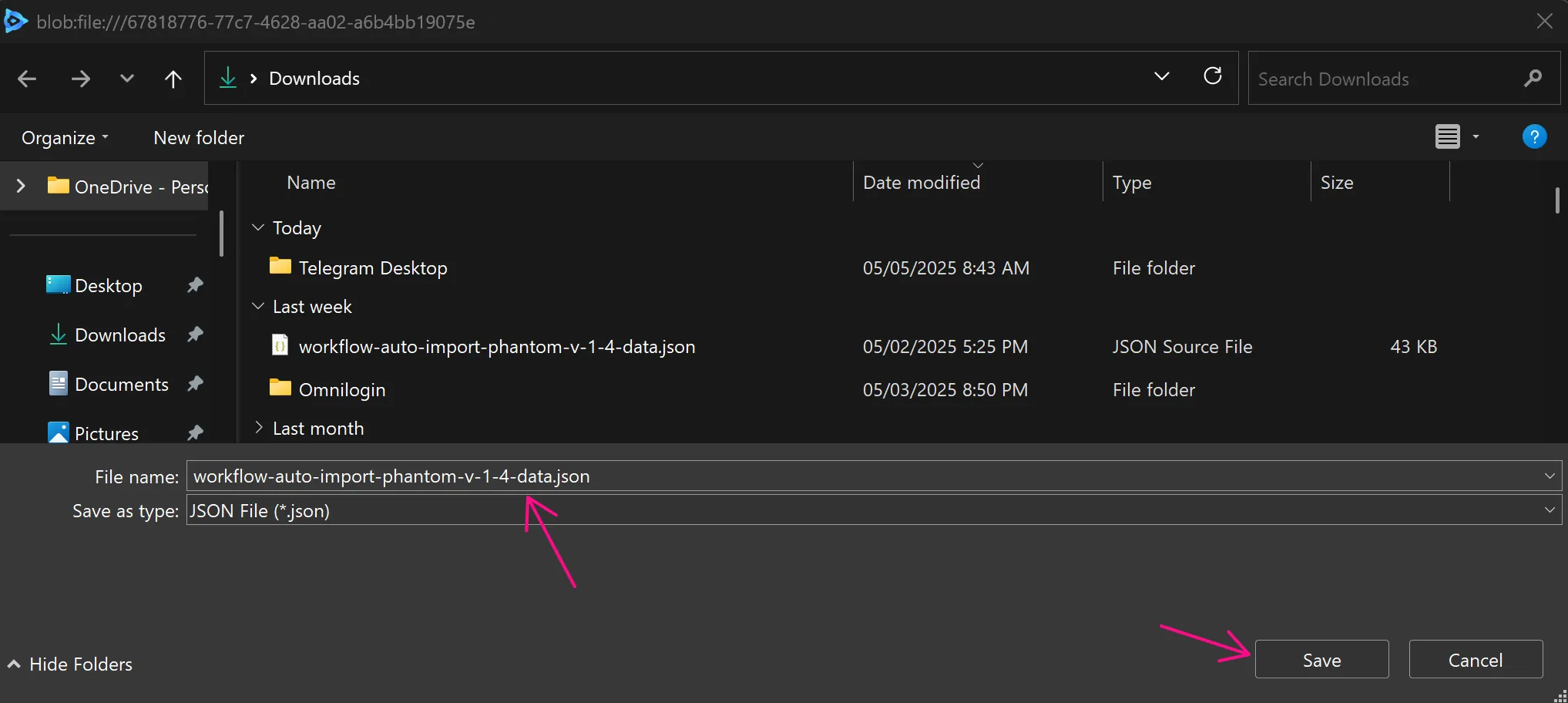
Workflows in Automation are saved in JSON format. You can export this JSON file and import it into another desired workflow. To export a workflow, click the workflow's three-dot icon () and select Export . You can export from the workflow creation area, workflow settings, or the workflow list.
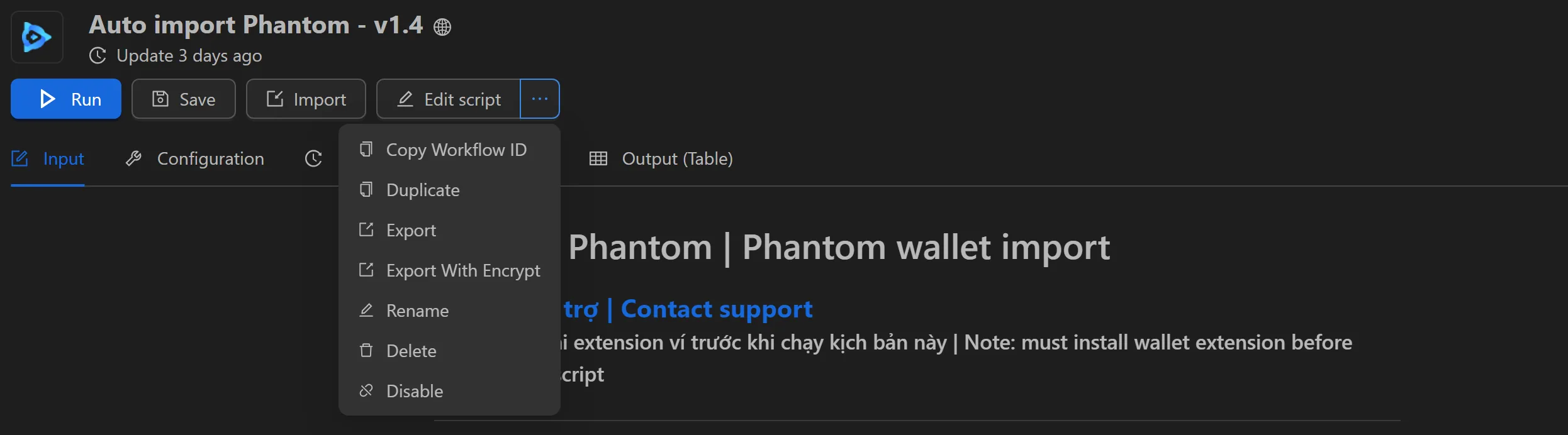
Export With Encrypt
If you want to export a workflow while restricting access and usage time, select Export With Encrypt. You can export from the workflow creation area, workflow settings, or the workflow list.
You can choose access permissions with:
- Username: the account name that is allowed to use the workflow
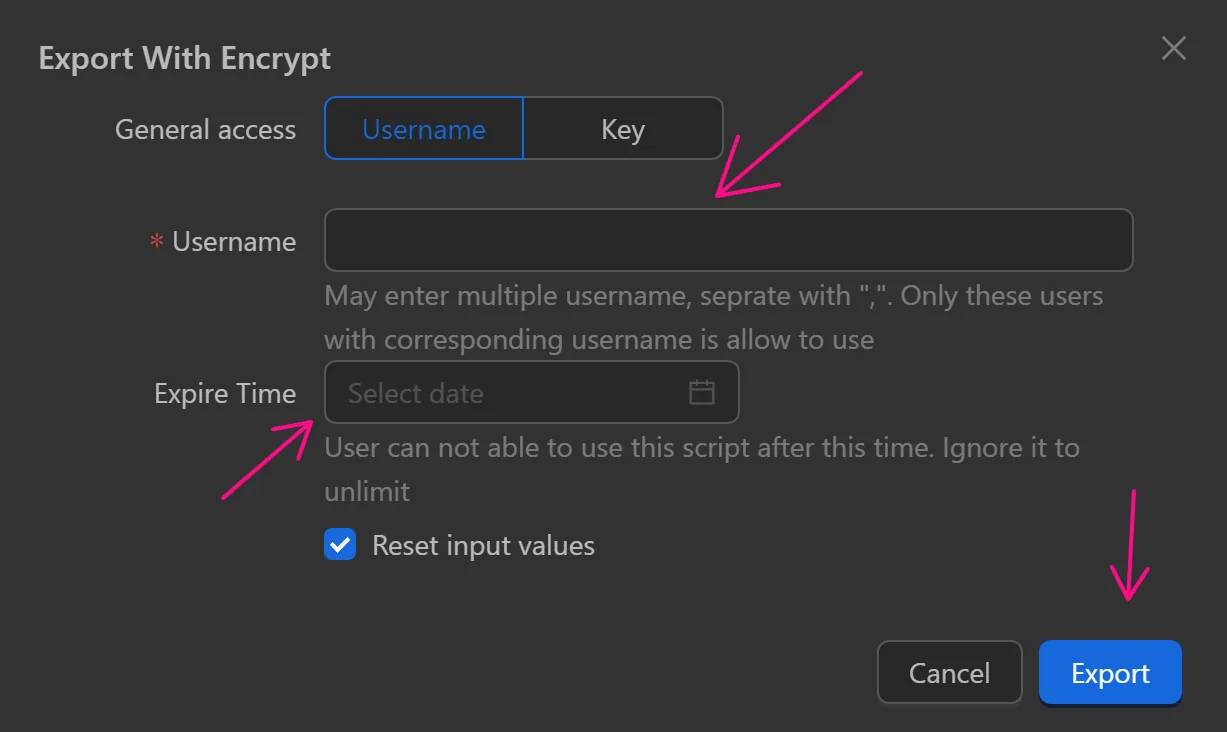
- Key: any account using this key can use the encrypted workflow
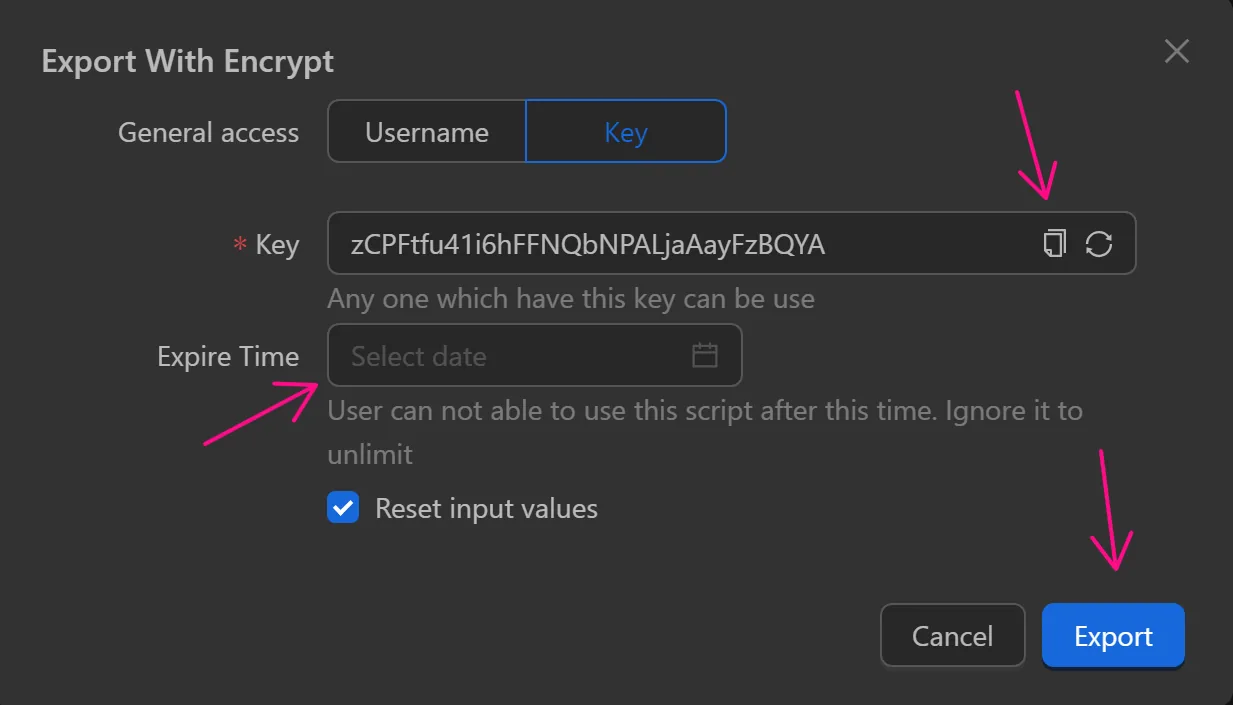
Finally, you can set an expiration time for the workflow. If left blank, the workflow can be used indefinitely.
Note
Encrypted workflows can only be imported via the Import function and cannot be exported using the Export function.
API
Export workflow with API access permissions.
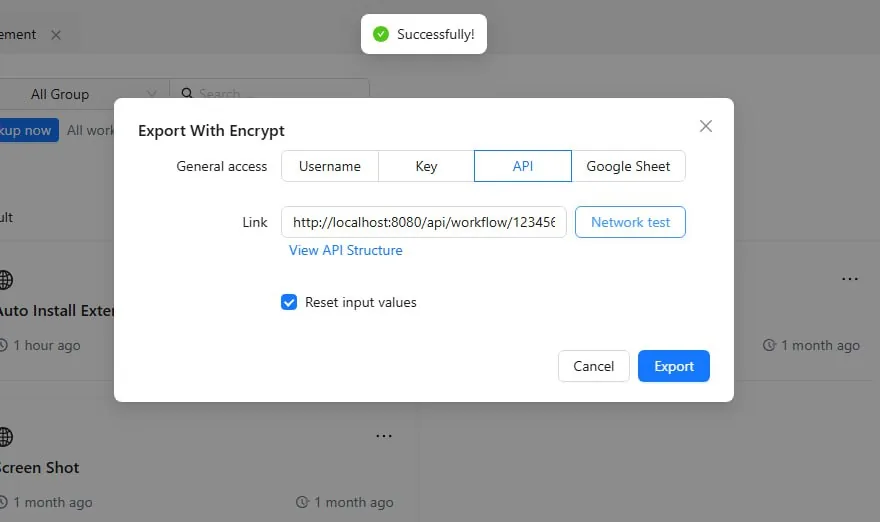
When Verification shows Success, the user can export the file to that API.
Google Sheet
Export the workflow to Google Sheet so users can have permission to use this exported workflow. A powerful feature supporting workflow sellers.
Sheet Configuration Guide for Access Permissions
First, click Link Demo Sheet to display the required Sheet structure.
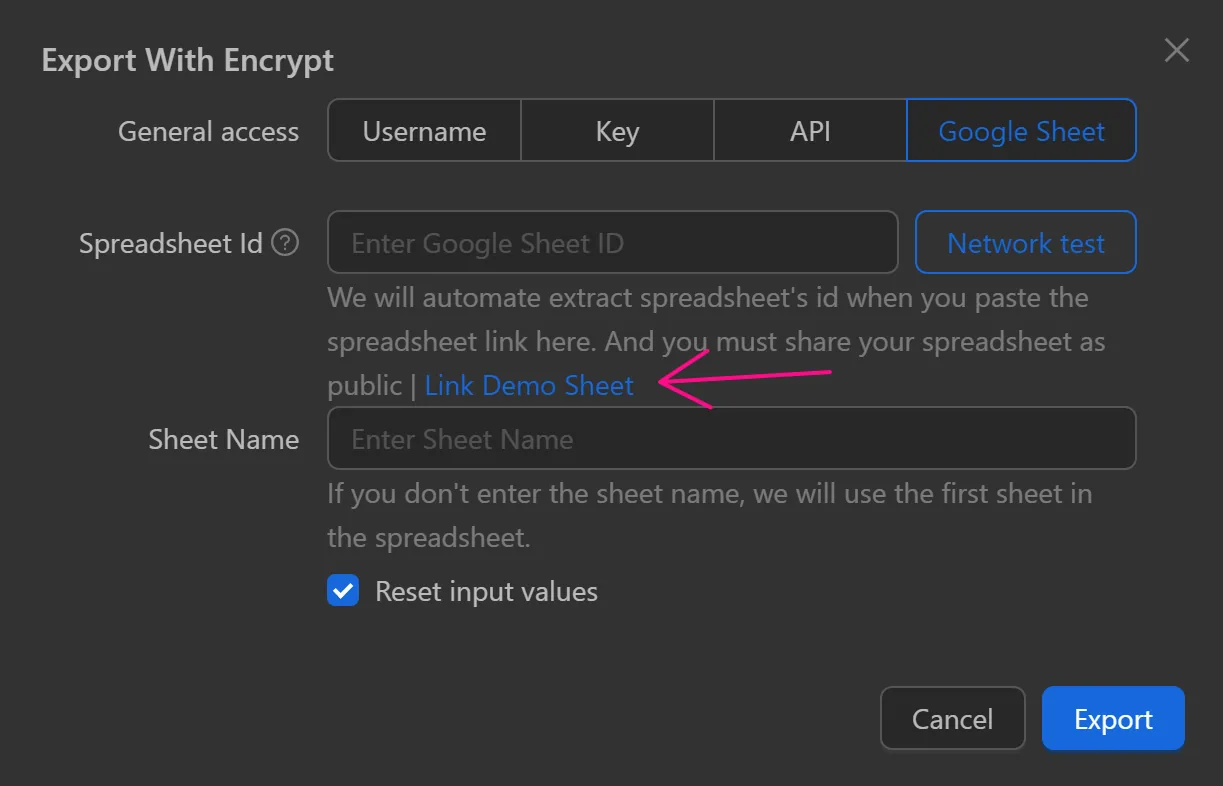
In that sheet, the user needs to configure the user_id column and the expire_date column.

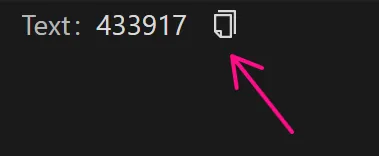
The user_id value to be filled in the column is unique to each account. To find this value, the user can go to the workflow's Input creation section. Select Special content under Display and drag it out.
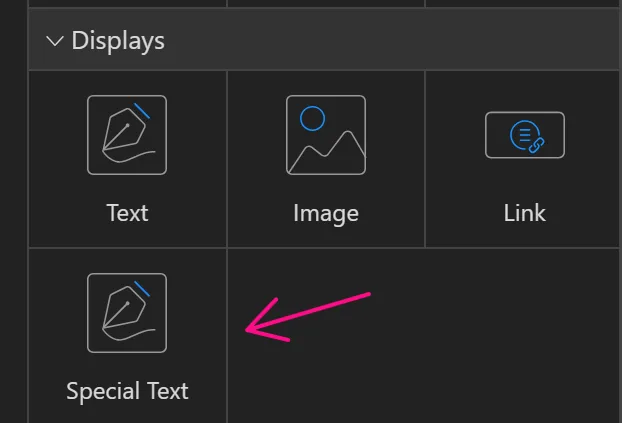
Then copy that value to fill into the user_id column in the sheet.
For the expire_date column, enter the expiration date of the workflow here. Upon expiration, the buyer cannot use it even if downloaded.
Rename
Edit the name of the workflow.
Delete
Delete the workflow.
Disable
When selected you will no longer be able to run this workflow.